If you’ve opened Suno lately and thought the lyrics side of the Create page looks different — you’re not imagining it. Over the past few months, Suno has quietly rebuilt the way lyrics work across the platform, and the result is a smarter, faster songwriting workflow that gives creators more control before a single note is generated.
Here at HyperWaveKulture, lyrics are half the battle. Whether we’re writing a K-pop hook, a budots chant, or a cinematic pop anthem, the words have to land before the music can. So this update hits close to home. Let’s break down what’s new.
The New Lyrics Workspace (Hello, Magic Wand)
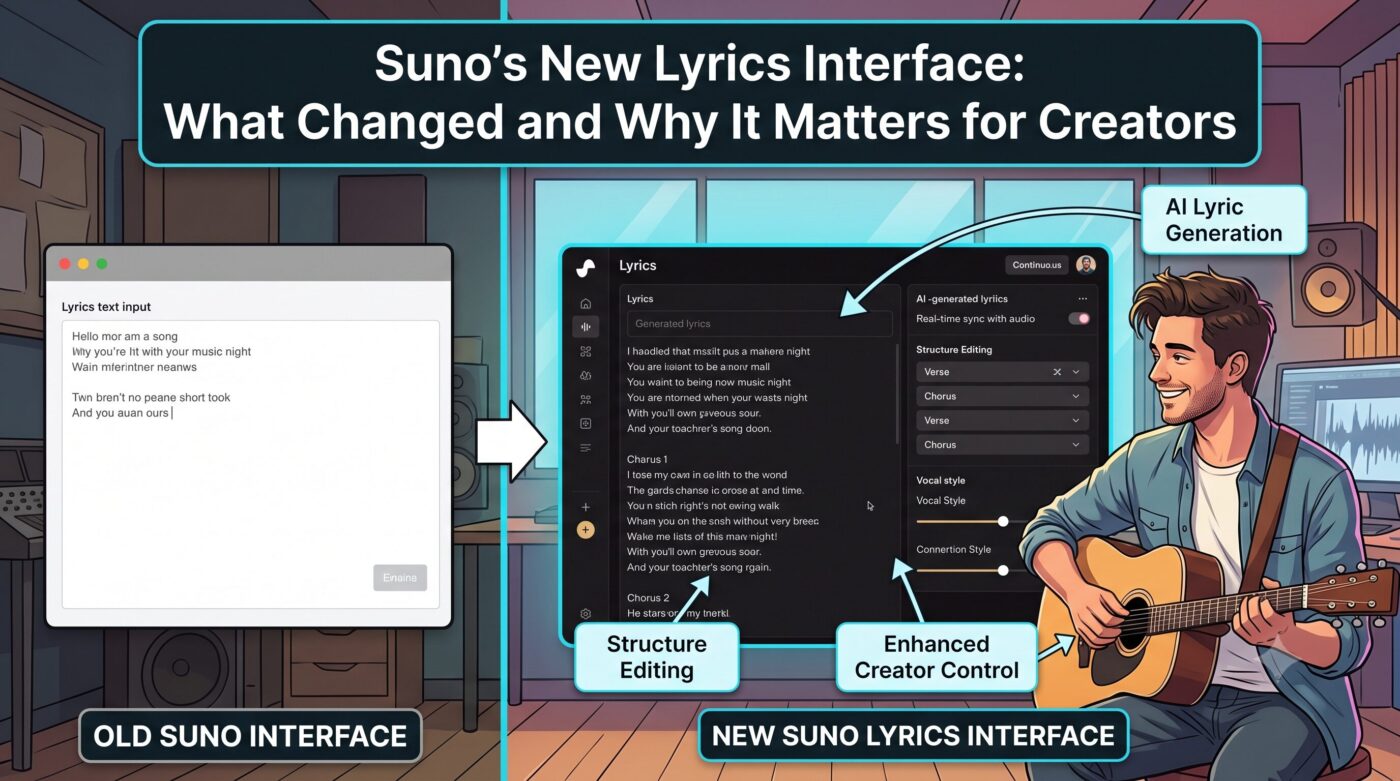
The biggest change is the dedicated lyrics workspace, opened with the magic wand icon in Custom Mode. Instead of a plain text box, you now get a full writing environment where you can:
- Ask Suno to generate complete lyrics from a theme or concept
- Refine individual lines without rewriting the whole song
- Specify structure, tone, and subject matter up front
- Choose between two generated lyric options, then edit your pick before you ever hit Create
That last point is huge. Getting two takes on your lyrics side by side means you can cherry-pick the stronger hook, merge the best lines from both, and shape the final draft yourself. It’s less “AI writes your song” and more “AI hands you two rough drafts and you play editor.”
My Taste Makes the Wand Smarter
If you’re on Suno’s v5.5 model, the lyrics workspace gets an extra brain boost from My Taste. Suno now learns your go-to genres, moods, and references over time, and applies that knowledge whenever you use the Magic Wand.
In practice, that means the more you create, the more the lyric suggestions start sounding like you. For a multi-genre channel like ours, that’s a double-edged sword — it’s great for consistency within a style, but if you bounce between hip-hop and synthwave like we do, expect the wand to lean toward whatever you’ve been making most recently.
Lyrics Model Selector on Mobile
The May 2026 mobile update brought the Lyrics Model Selector to the app, letting you choose which of Suno’s lyrics models writes for you. Different models have noticeably different personalities — some lean poetic and abstract, others punchy and literal. Being able to switch on the fly means you can match the lyric engine to the genre instead of fighting one model’s default voice.
The same update added Memory (Create remembers your last prompt, so iterating doesn’t mean retyping) and Vocal Gender selection on mobile, bringing the app much closer to parity with the web experience.
Write in Notes, Sing in Suno
One more workflow gem for iPhone users: you can now share a note directly from the iOS Notes app into Suno, and the app automatically transcribes it into the lyrics form. If you’re the type who scribbles lyric ideas on the train or in the middle of the night (guilty), this removes the copy-paste dance entirely. Voice Memos gets the same treatment on the audio side.
Simple vs. Advanced: Pick Your Lane
The Create page itself is now organized around two clear paths:
Simple combines your lyrics and song direction into one input. Describe the vibe, hit Create, done. Great for fast sketches and idea testing.
Advanced separates lyrics from everything else — style, structure, vocals — and keeps your lyrics available as you move through the process. This is where serious lyric work happens, and it’s where the new workspace, section tags, and model selection all live.
Why This Matters
Suno’s early lyric tools felt like an afterthought — a text box you dumped words into and hoped for the best. This new interface treats lyrics as a first-class part of the creative process: draft, compare, refine, then generate. For creators publishing at volume, the time savings compound fast. Fewer wasted generations, fewer credits burned on lyrics that didn’t sing right, and more songs that sound the way they read.
If you haven’t explored the new workspace yet, open Custom Mode, tap the magic wand, and give it a spin. Your hooks will thank you.
What do you think of the new lyrics workflow — game changer or just a facelift? Drop a comment below, and check out our latest tracks on the HyperWaveKulture YouTube channel.
#HyperWaveKulture #SunoAI #HWK #AIMusic #Songwriting
Level Up Your Tracks: 10 Pro Tips for Making Better Songs on Suno AI (2026 Edition)
If you’ve spent any time on Suno AI, you know the feeling: you type in a quick prompt, hit generate, and hope for a masterpiece. Sometimes you get lucky, but more often than not, you end up with something that sounds a bit generic, formulaic, or cut off right at [...]| Play | Cover | Release Label |
Track Title Track Authors |
|---|